Tag Archives: Slides

Animations – don’t let them suck the life out of your audience!

My main goal for the summer MP session has been to improve the overall appearance of my PowerPoint slides. I learned that slide design was a weakness of mine during the first semester when I saw some of the Carlos Museum presentations that you all put together.  I was very impressed (and jealous!). I have since spent some time searching for articles on how to improve in this area, and it has been difficult to find tangible recommendations that are easy to apply. Thus, I turned to Amazon and purchased a book called slide:ology.

While I have not read the whole book yet, it has a lot of useful content, and reading it will be part of my personal action plan. I wanted to share one of many useful takeaways in this book with you, which is on animations. Human beings are innately programmed to look at things when they move (fight-or-flight instinct), but PowerPoint animations were not designed with this taken into consideration.

Every time we include animations in our presentations, our audience will turn toward the movement. Even if your animation is subtle, it will momentarily distract our audience. It is important to note that animation, while it may distract, is not always a bad thing. If we use them to help our audience process information more effectively, they can be a huge asset. This requires selecting animations wisely.

Animation should breathe life into your audience, not suck it out. Always choose animation that looks natural and alive, and movement must feel familiar. English is read from left to right, and so our eyes are much more comfortable moving left to right. Keep this in mind if you choose to have words fly-in. A descending object is sensible since we recognize the law of gravity. Although, text dropping down and bouncing all around has no meaning and can be annoying. Objects ascending appear to resist gravity, which can be perceived as illogical. The book goes into more detail on animation recommendations, but the key takeaway is not to include animations for the sake of having animations. They must be selected wisely and help the audience process information.
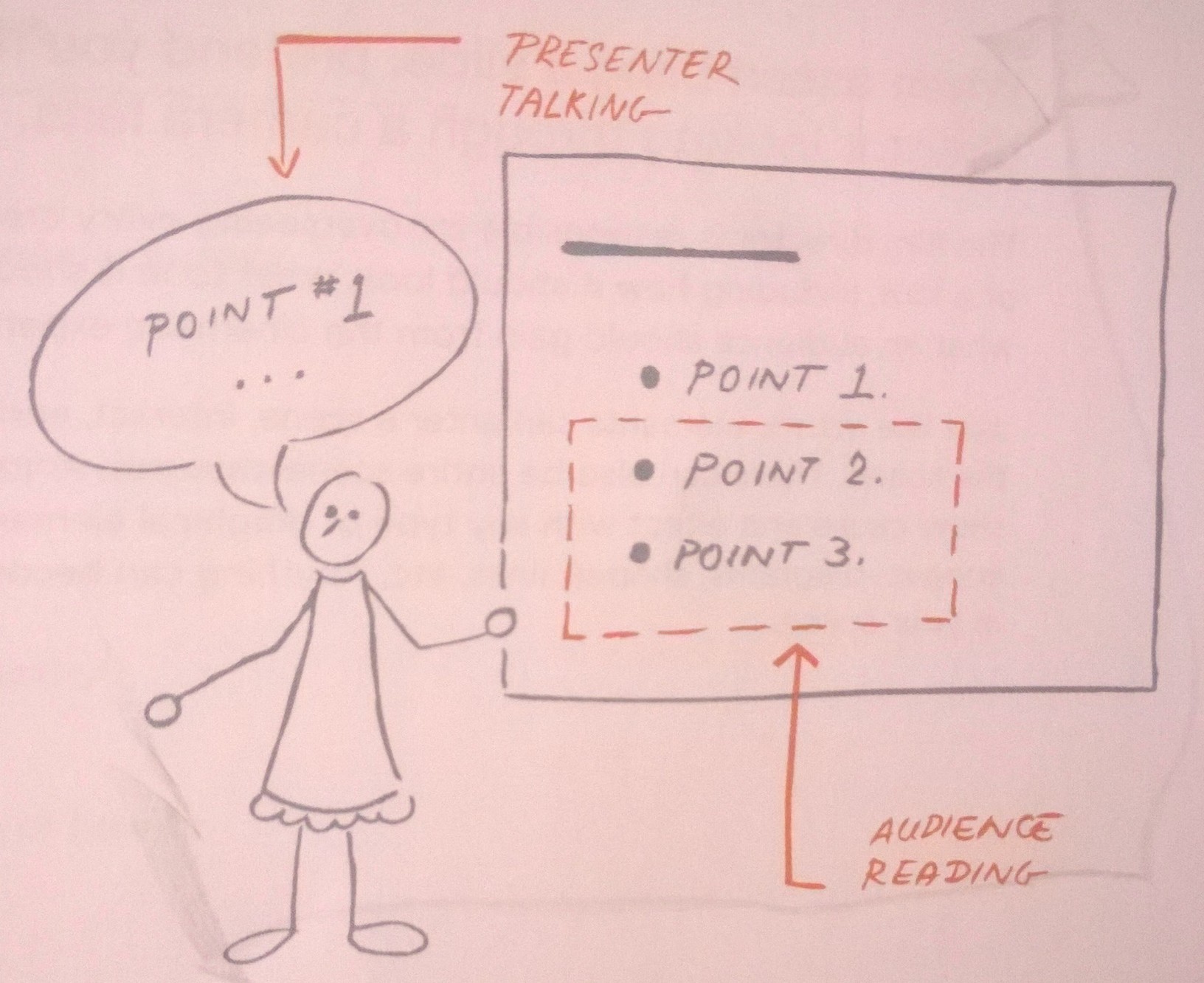
WP_20140805_002

It is fine to animate points, but make sure you hide them until you start discussing them.

Duarte, Nancy. Slide:ology: The Art and Science of Creating Great Presentations. Beijing: O’Reilly Media, 2008. Print.


Punt PowerPoint

Like most people, I have always used Microsoft PowerPoint to create presentations. It’s quick, simple, and accessible by most users. However, it’s also these characteristics that have led to so many horrible presentations. Everyone can make a PowerPoint presentation, but it seems that only a few can make good PowerPoint presentations.

Obviously, the content, arrangement, and delivery of a PowerPoint presentation will ultimately determine whether the presentation is a dud or not. However, with the extremely high use rates of PowerPoint, maybe there are other software applications available that will help make a presentation standout against the crowd.

Here is a list of five alternative presentation applications that I came across in an article by Stu Robarts.

1. Prezi (prezi.com) – Instead of the linear progression of PowerPoint slides, Prezi presentations are designed on a large space (similar to a whiteboard) where the user can decide the path that the material should be presented in. Ultimately, the design is intended to help audiences understand how the ideas in the presentation are related to each other.

2. Keynote (https://www.apple.com/mac/keynote/) – Apple’s version of PowerPoint. In typical Apple style, it’s only compatible with Apple products.

3.  Google Slides (google.com) – A stripped-down version of PowerPoint; only the essential tools for creating a slide deck are available. However, the perk is that Slides are integrated into Google Docs. Changes to the presentations are auto-saved and multiple users can simultaneously edit a Slides presentation. The output can be downloaded into PowerPoint format.

4. ClearSlide (clearslide.com) – Designed for sales teams. The primary purpose is web-based presentations. It can be integrated with CRM systems for ease of data integration.

5. SlideDog (slidedog.com) – Every professor should be forced to use SlideDog. It’s not so much a presentation development software, as it is a presentation organizational software. It allows users to drag-and-drop all of their files that will be a part of their presentation (PowerPoint slides, Prezi presentation, web pages, PDFs, videos, etc.) into the SlideDog application and then arrange them into the desired order. When one file is completed, the subsequent file is launched. No more watching the presenter frantically search their desktop for the shortcut to the next element of their presentation.